 Auto Merge Orders Auto Merge Orders
 App gives you three ways to combine orders, all accessible from the Orders page. Pick the method that fits your workflow — from selecting individual orders to merging entire groups in bulk.
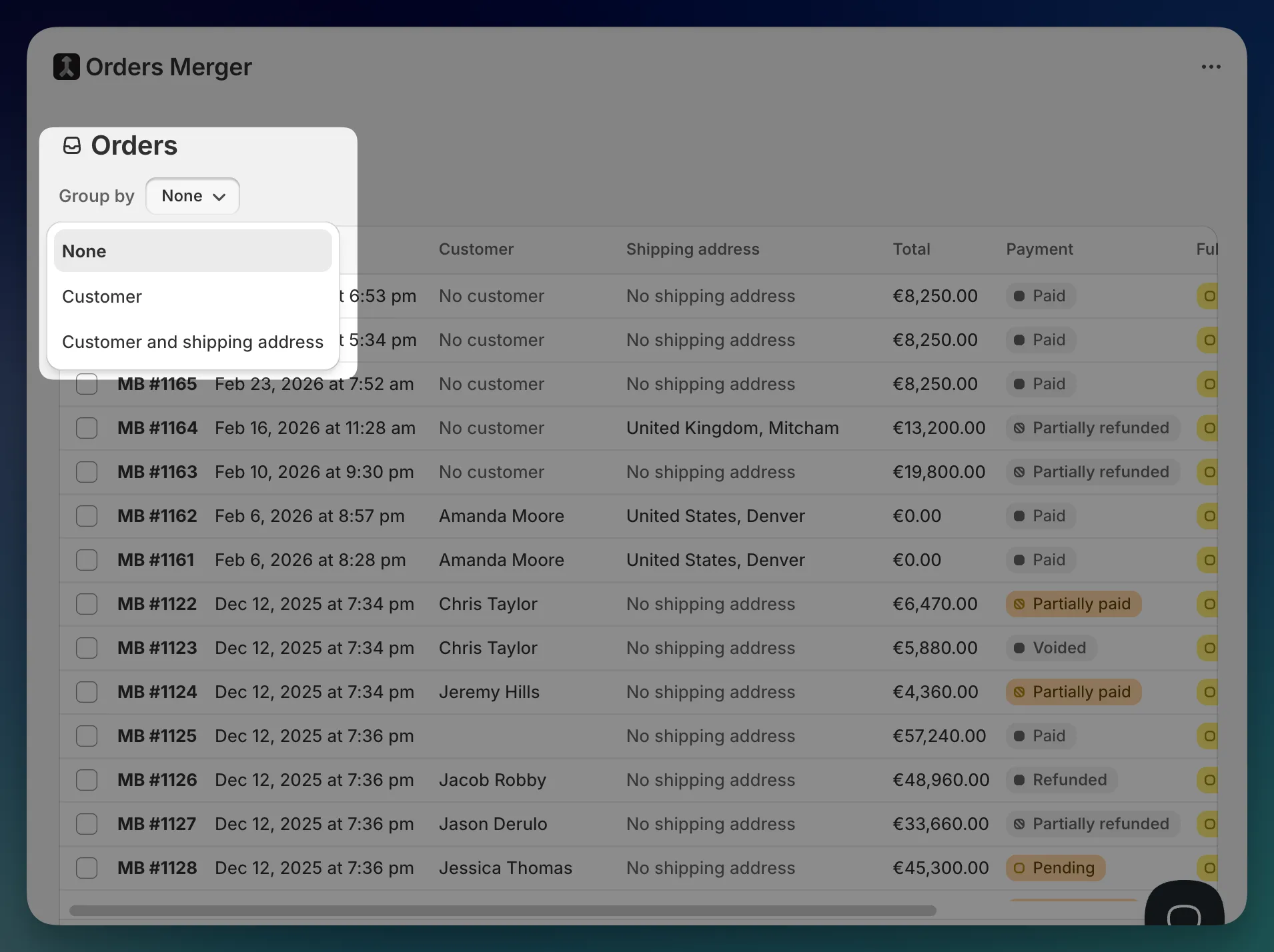
At the top of the page, you’ll see a Group by dropdown. This is how you switch between the three merging methods:
| Group by | What it does |
|---|---|
| None | Shows a flat list of all open orders. You select individual orders to merge. |
| Customer | Groups orders by customer. Merge all orders from the same customer at once. |
| Customer and shipping address | Groups orders by customer and address. Only orders going to the same place are grouped together. |
Quick merge lets you hand-pick specific orders and combine them into one. This is the most flexible option — you can merge any orders you want, even if they belong to different customers.
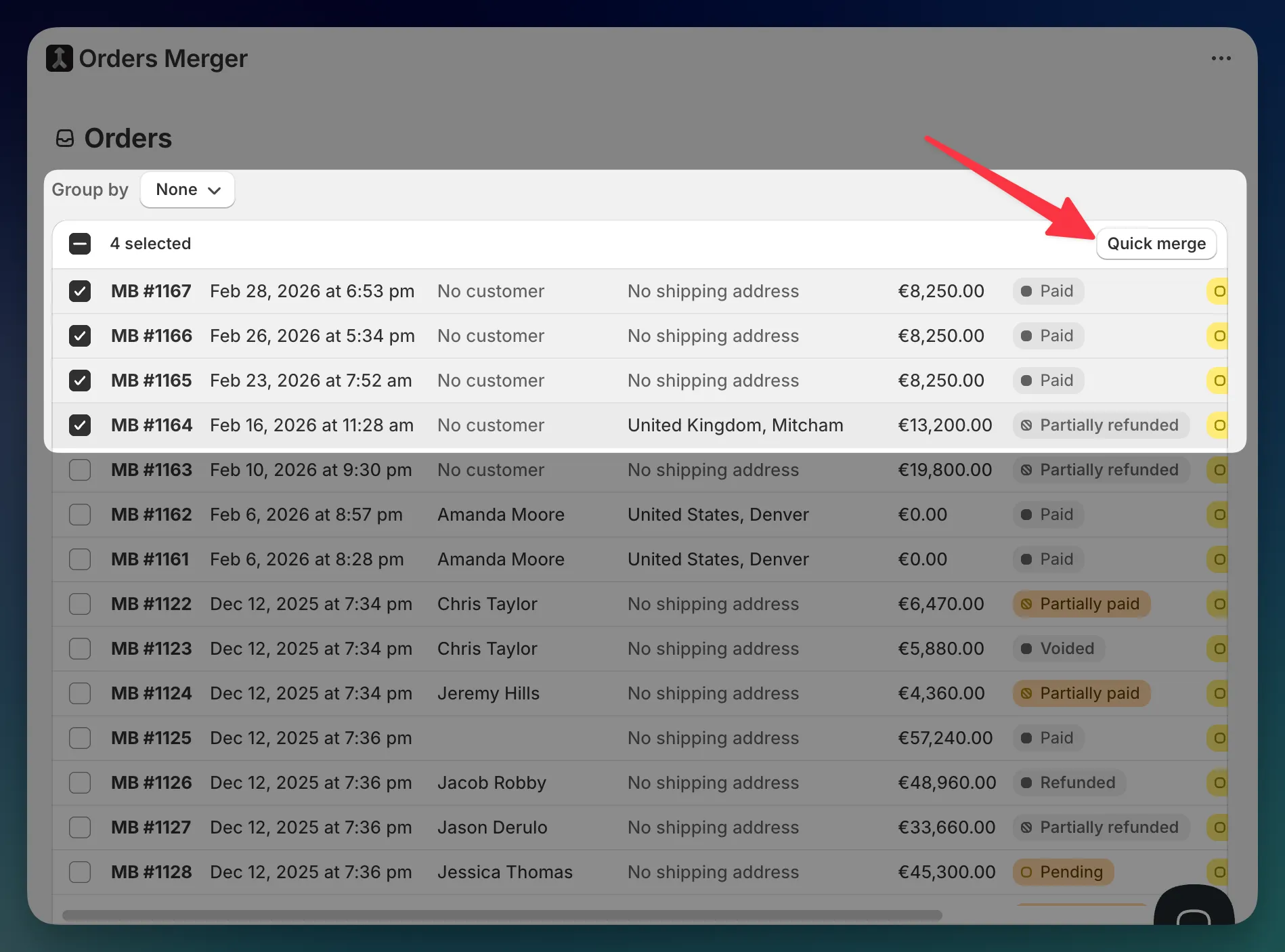
After the merge is created, you’ll be taken to the merged order detail page.
When you click Quick merge, a modal opens titled “Merging {count} orders”. It shows:
Shipping address selector — If the selected orders have different shipping addresses, you’ll see a list of addresses to choose from (labeled by order number). Pick the one you want to use for the merged order, or select None to leave it blank.
Customer selector — If the selected orders belong to different customers, a dropdown appears. Choose which customer to assign to the merged order, or select None.
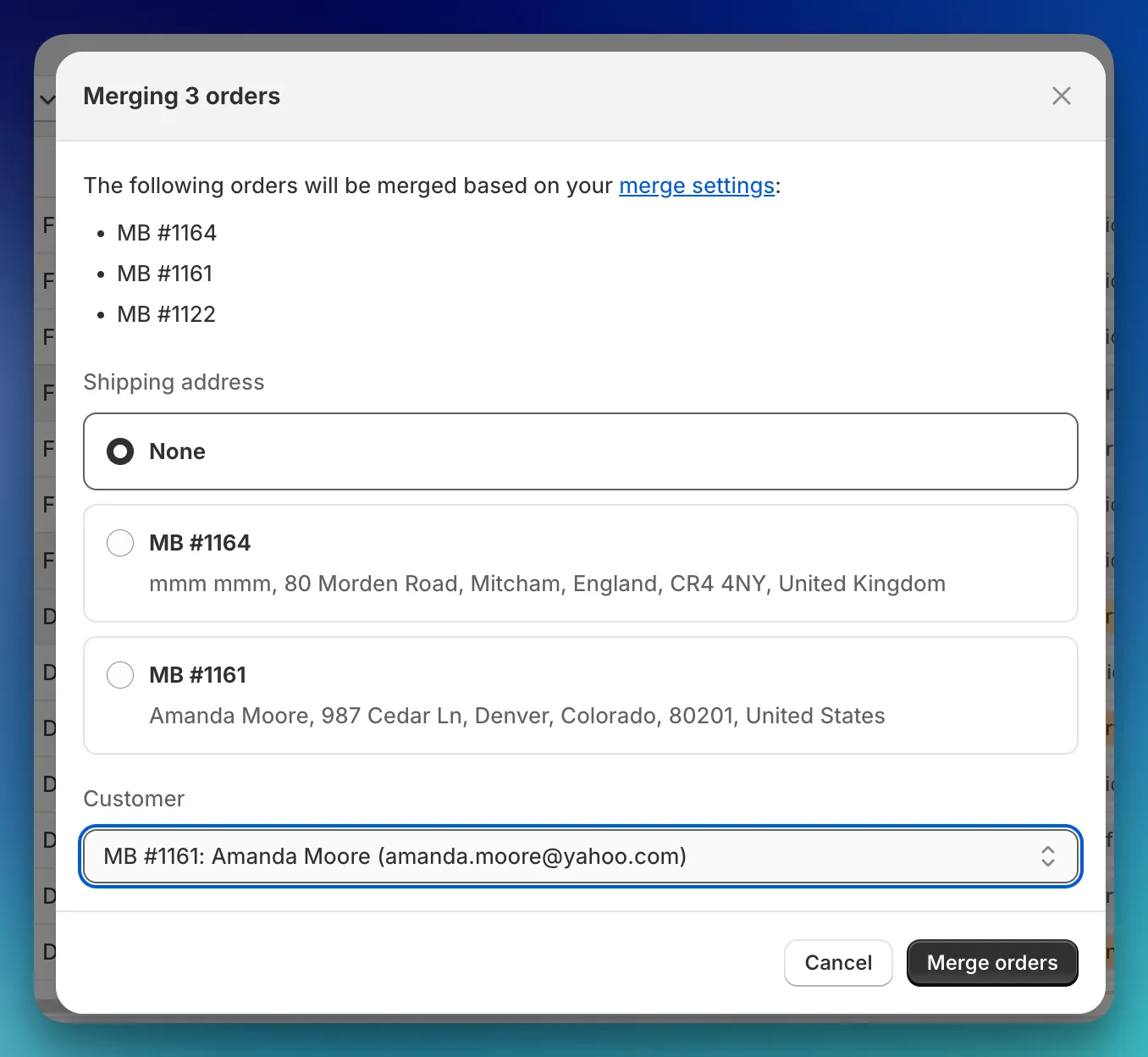
If all selected orders share the same customer and shipping address, these selectors won’t appear — the app uses the matching values automatically.
Group by: Customer
This view automatically groups all your open, unmerged orders by customer. Instead of picking individual orders, you select entire customer groups and merge them in one click.
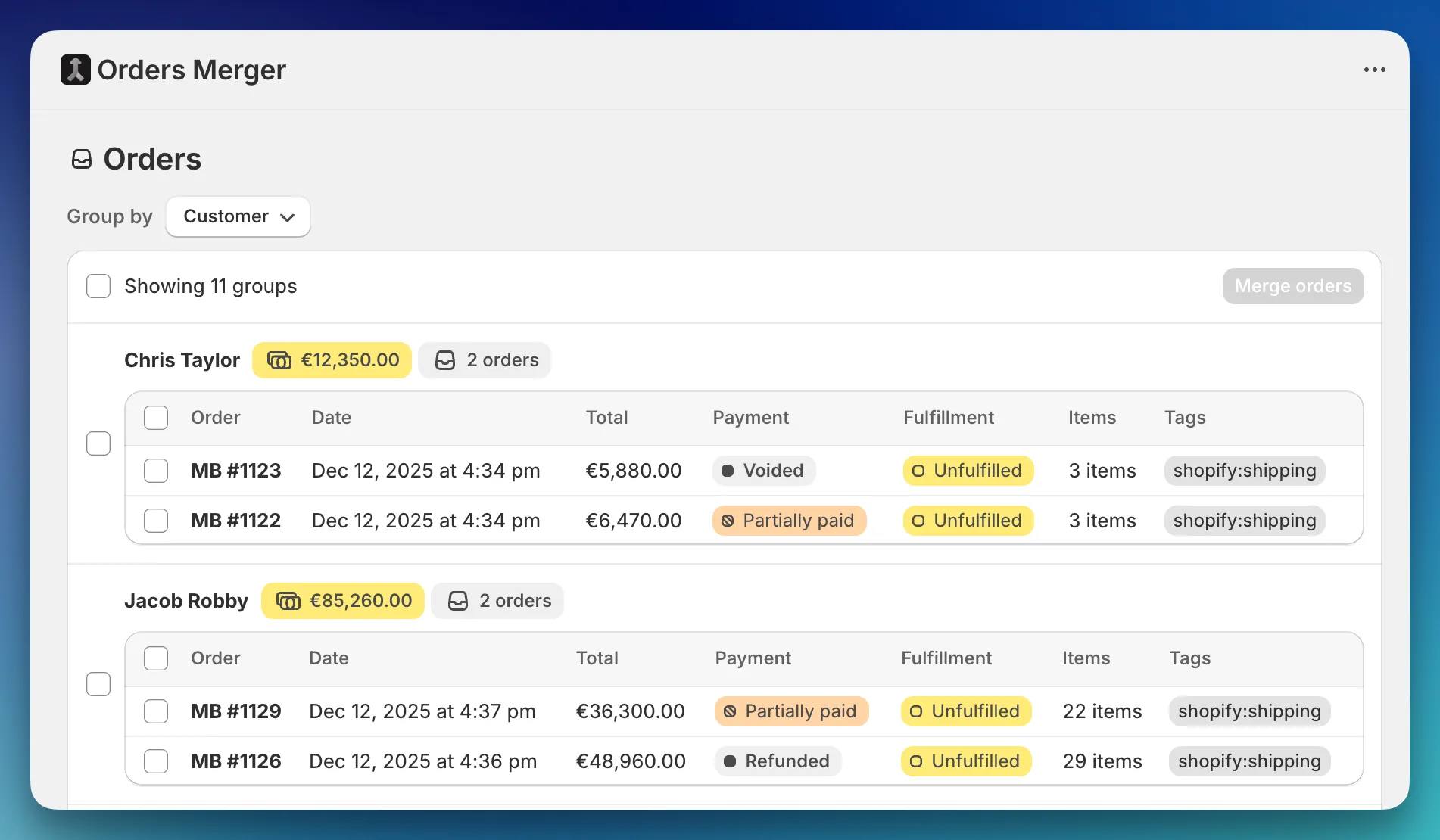
Each selected group becomes its own merged order. If you select 3 groups, you get 3 merged orders.
After merging, you’ll be taken to the Merged Orders page.
You don’t have to merge every order in a group. Expand a group to see its orders, then use the individual checkboxes to include or exclude specific ones. The group checkbox shows an indeterminate state when only some orders are selected.
Groups with more than 15 orders show a Show more link. Click it to reveal the rest.
If no groups are shown, it means there are no customers with two or more open, unmerged orders. The app displays: “No mergeable orders found — The app analyzes all your orders and groups them when the customer matches.”
The page automatically checks for new groups every few seconds, so if a new order comes in while you’re looking at the page, the groups update on their own.
Group by: Customer and shipping address
This is the most precise grouping method. Orders are grouped only when both the customer and shipping address match. Use this when your customers order to multiple locations and you only want to combine shipments going to the same place.
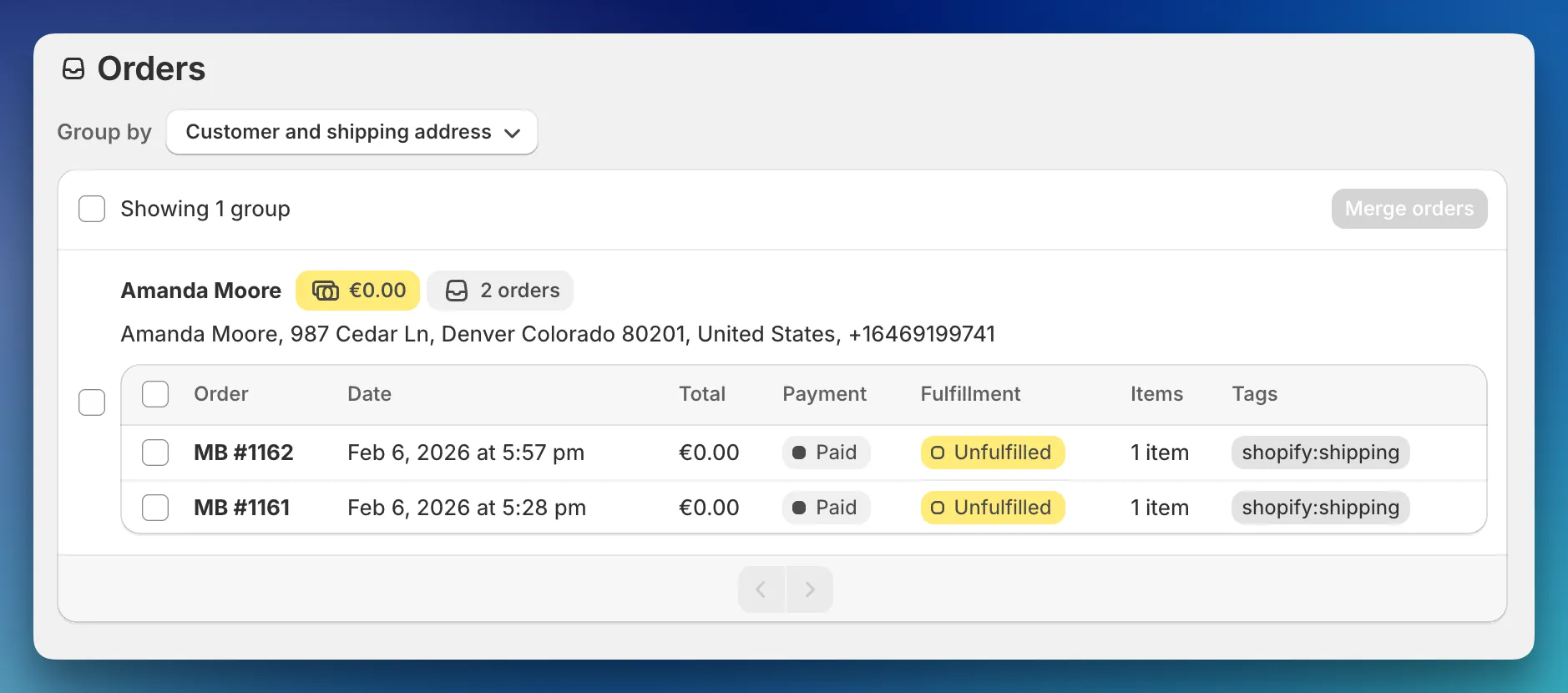
The key difference from the customer-only view: each group header includes the shipping address below the customer name. A single customer can appear in multiple groups if they have orders shipping to different addresses.
Example: Jane Doe has 5 orders — 3 shipping to her home address and 2 shipping to her office. You’ll see two separate groups for Jane, each with its own address. You can merge them independently.
Just like the customer view, you can expand a group and select or deselect individual orders before merging.
If no groups are shown, the app displays: “No mergeable orders found — The app analyzes all your orders and groups them when the customer and shipping address match.”
| Scenario | Recommended method |
|---|---|
| You want to hand-pick specific orders to combine | Quick merge (Group by: None) |
| A customer placed several orders and you want to ship them together | Group by: Customer |
| A customer orders to multiple addresses and you want to combine per-destination | Group by: Customer and shipping address |
| You want to merge as many orders as possible in bulk | Group by: Customer or Customer and shipping address, then select all groups |
Regardless of which method you use, every merge follows the same process:
Each merged order is labeled with its type — Manual, Customer, or Customer + Address — so you can always tell how it was created.