 Auto Merge Orders Auto Merge Orders
 Instead of manually selecting orders to merge, you can let the app handle it automatically. Choose between instant merging (as soon as orders arrive) or scheduled merging (on specific days and times).
To configure automation, go to Settings > Automation.
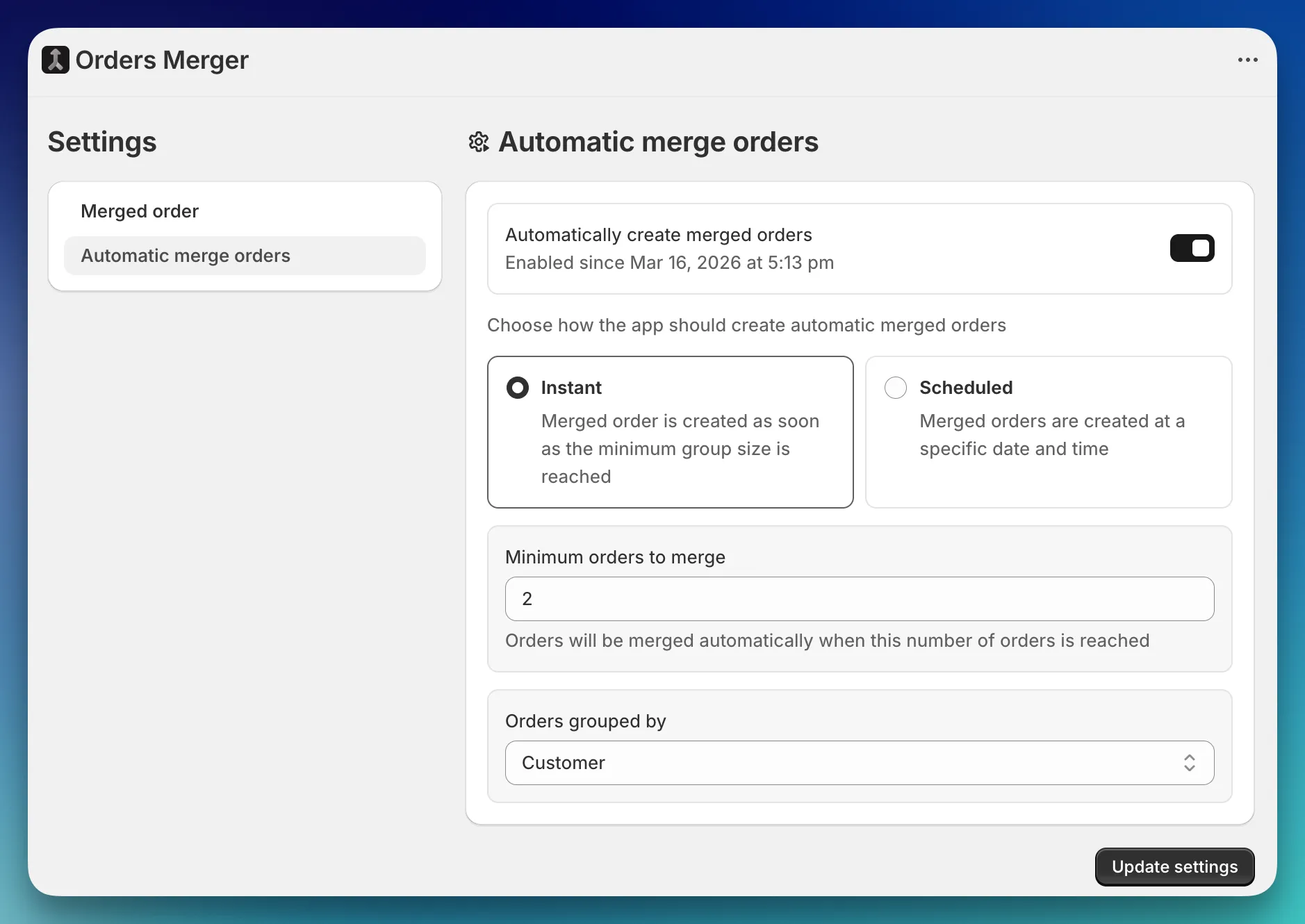
Toggle the Enable automation switch to turn on automatic merging. When you enable it, you’ll choose between two merge strategies.
Automation only applies to orders created after you enable it. Existing orders won’t be retroactively merged — use manual merging for those.
When a new order is created in your store, app checks whether the customer (or customer + address group) now has enough orders to meet your threshold. If the threshold is met, a merged order is automatically created.
Example: If you set the orders count to 3 and group by Customer, the app waits until a customer has 3 open orders and then merges them all into one.
Setting the count to 2 means orders merge as soon as a second order comes in from the same customer. This is the most common setup for stores that want immediate consolidation.
On each scheduled day and time, app finds all customers (or customer + address groups) with two or more open orders and merges them. This is a good fit for stores that process orders in batches — for example, running a merge every Monday morning before the week’s fulfillment begins.
Example: Schedule merges for Monday and Thursday at 6:00 AM. Every Monday and Thursday, the app checks for customers with multiple open orders and creates merged orders for each group.
Both instant and scheduled merge let you choose how orders are grouped:
| Strategy | When to use |
|---|---|
| Customer | Merge all orders from the same customer, regardless of where they’re shipping. Best when most customers ship to one address. |
| Customer + Address | Only merge orders from the same customer going to the same shipping address. Best when customers often ship to different locations. |
Automated merges use the same merge settings as manual merges. The order name, line item strategy, shipping calculation, and original order handling all follow your current configuration.
Auto-merged orders are labeled with an Automatic badge on the Merged Orders page so you can distinguish them from manual merges.