 Auto Merge Orders Auto Merge Orders
 After you install the app, your store’s most recent orders are automatically imported so you can start merging right away.
When a customer places multiple orders, you end up with separate shipments, extra packaging costs, and a messy order list. Auto Merge Orders combines those orders into a single Shopify order — keeping your fulfillment clean and your customers happy.
You can merge orders manually, by selecting the ones you want to combine, or automatically, by letting the app group and merge them for you on a schedule or in real time.
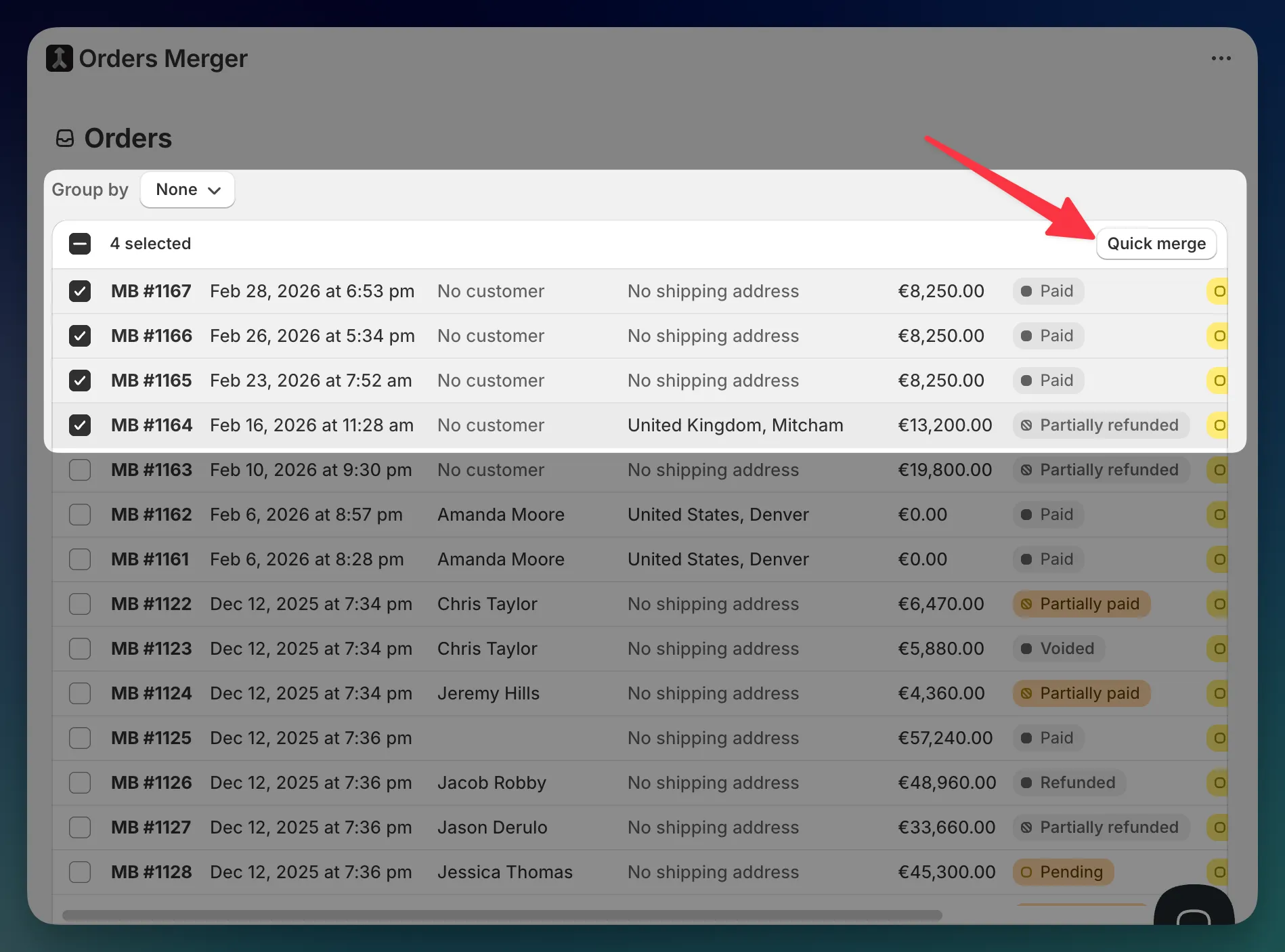
That’s it. Auto Merge Orders creates a new combined order in Shopify and processes the originals based on your merge settings.
If the selected orders have different customers or shipping addresses, you’ll be asked to choose which one to use for the merged order.
When you merge orders, here’s what happens:
Each merged order keeps a snapshot of the settings that were used to create it, so you always have a record of exactly how it was built — even if you change your settings later.
Most merchants start by configuring their merge settings, then try a few manual merges to see how everything works before turning on automation.