 Auto Merge Orders Auto Merge Orders
 Merge settings define how every merged order is built — from the order name to what happens with the originals afterward. These settings apply to both manual and automatic merges.
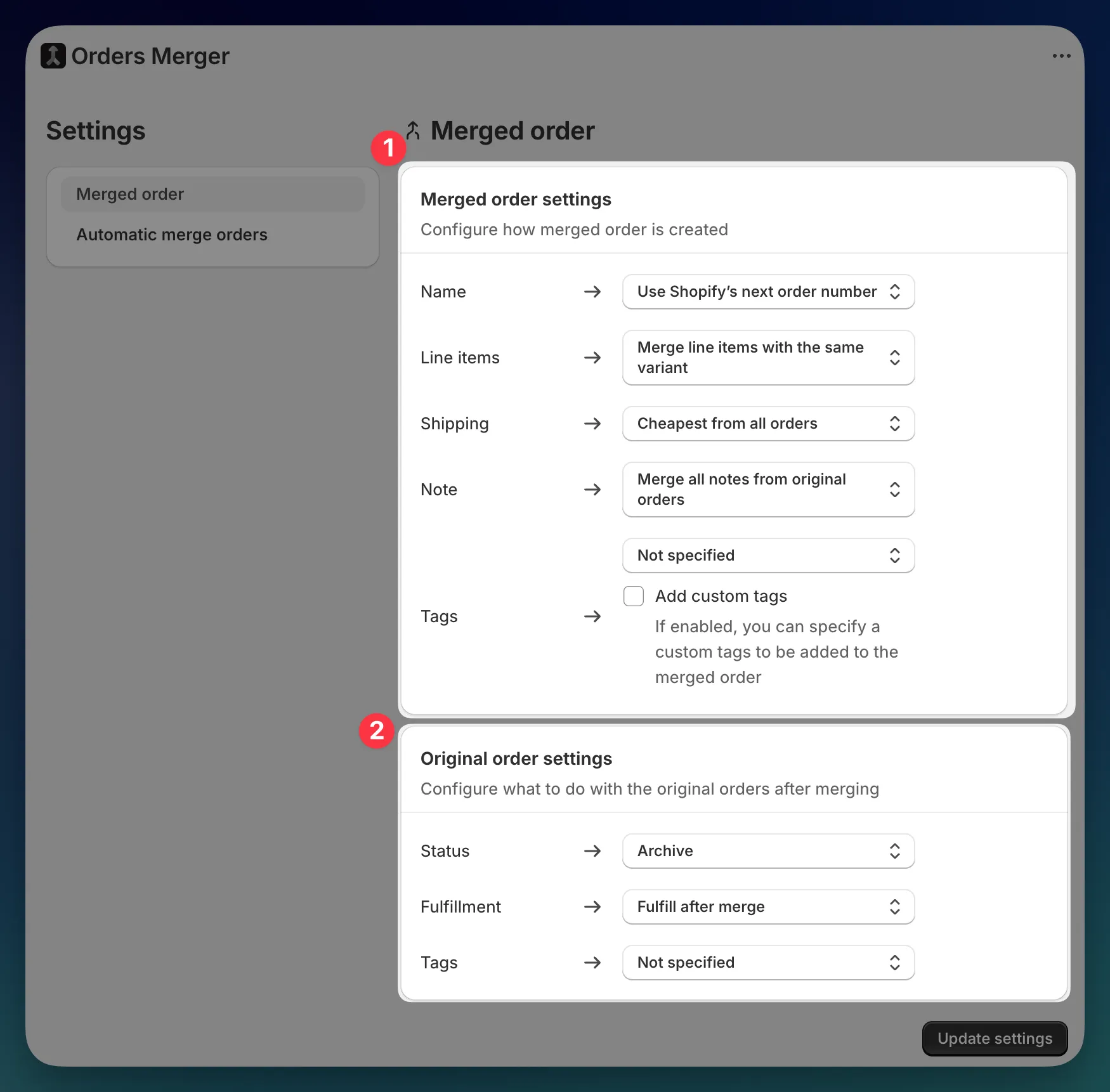
The page has two sections: Merged order settings (how the new order is created) and Original order settings (what happens to the source orders).
Controls how the merged order is named in Shopify.
| Option | What it does |
|---|---|
| Use Shopify’s next order number | Assigns the next sequential order number from your store, just like a regular order. |
| Merge original order names | Combines the source order numbers into one name (for example, #1001-#1002-#1003). |
Controls how products from the source orders are combined.
| Option | What it does |
|---|---|
| Merge line items with the same variant | If the same product variant appears in multiple orders, it’s combined into a single line item with the total quantity. |
| Keep original line items with the same variant | Every line item stays separate, even if the same variant appears more than once across orders. |
Controls how shipping costs are calculated for the merged order.
| Option | What it does |
|---|---|
| Cheapest from all orders | Uses the shipping total from the order with the lowest shipping cost. |
| Most expensive from all orders | Uses the shipping total from the order with the highest shipping cost. |
| Sum from all orders | Adds up shipping costs from all source orders. |
Controls how order notes are handled.
| Option | What it does |
|---|---|
| Merge all notes from original orders | Combines notes from every source order into one. |
| Not specified | The merged order won’t have a note. |
Controls how tags from the source orders carry over.
| Option | What it does |
|---|---|
| Merge all tags from original orders | All tags from every source order are added to the merged order. |
| Not specified | No tags from the source orders are carried over. |
Below the dropdown, you’ll see an Add custom tags checkbox. When enabled, a tag input field appears where you can enter tags that will be added to every merged order you create. This is useful for filtering merged orders in Shopify or triggering automations with tools like Shopify Flow.
You can add multiple custom tags — type each one and press enter to add it.
Configure what to do with the original orders after merging
Controls what happens to the source orders after the merge is created.
| Option | What it does |
|---|---|
| Archive | Closes the original orders in Shopify. They’ll still be visible in your order history. |
| Cancel | Cancels the original orders. |
| Not specified | Leaves the original orders as they are — no changes. |
Controls whether the source orders are automatically fulfilled after merging.
| Option | What it does |
|---|---|
| Fulfill after merge | Marks the original orders as fulfilled once the merge is complete. |
| Not specified | Leaves the fulfillment status unchanged. |
The Fulfillment setting is only visible when Status is set to Archive or Not specified. When Status is set to Cancel, fulfillment is hidden — cancelled orders can’t be fulfilled.
Controls whether custom tags are added to the original orders after merging. This helps you identify which orders have already been processed by Auto Merge Orders.
| Option | What it does |
|---|---|
| Add custom tags | Adds your specified tags to every original order after the merge. A tag input field appears where you can enter one or more tags. |
| Not specified | No tags are added to the original orders. |
Every time a merge is created, a snapshot of the current settings is saved with that merged order. This means:
Try a few manual merges after changing your settings to make sure everything works the way you expect before enabling automation.